
Learn ›
Add trail cam photos from any camera
Borrowed Tine works with photos and clips from any trail camera brand. It reads the stamp bar printed on the photo (date, time, temperature, camera name) and files each one at the right camera.
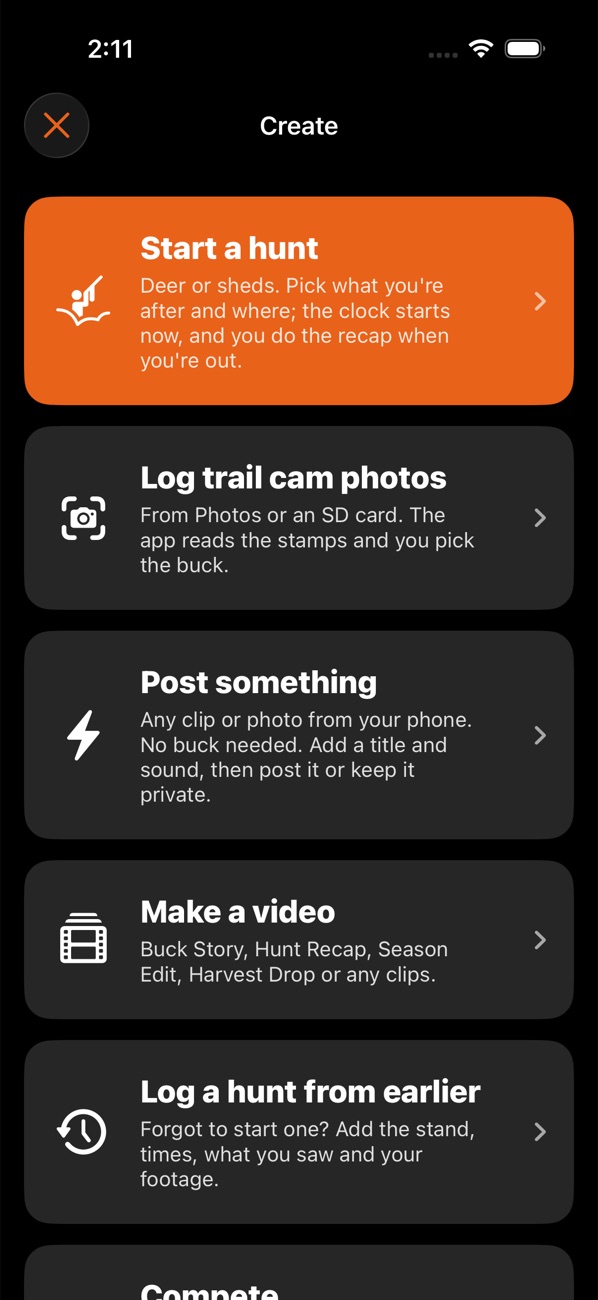
From your phone's photos or an SD card reader:
- Tap +, then Log trail cam photos.
- Choose your Photos library or Files (an SD card reader shows up in Files). Pick as many as you like.
- Check the review screen. It shows what it read from each stamp ("from stamp"), the camera, and groups photos from the same camera within about 10 minutes into one sighting. Fix anything that's wrong; the app never guesses silently.
- Pick the buck for each sighting (+ New buck, Unknown buck or one of yours; the bucks seen most at that camera are listed first), then save.
From a cellular camera app (Spartan, Moultrie and others):
- In the camera's app, open the photo and tap its share button.
- Pick Borrowed Tine in the share list.
- When Borrowed Tine opens and asks "What is this?", choose Trail cam photos.
- If the camera app won't share the photo, save it to your phone's photos first, then use Log trail cam photos.
Tips:
- Once a stamp's camera name is matched to a camera in the app, later imports go there by themselves.
- Photos with no stamp (phone, drone) use the file's date and time instead.
- A photo already in the app isn't added twice; it shows under "Already in the app" with a Move to… menu.
- Weather fills in by itself from the camera's location and time.
- No photo? Tap +, Log trail cam photos, then No photo: I saw him to log a buck you saw yourself, including from which stand.
Something not working? Ask the help chat (bottom right), or email support@borrowedtine.com.